
How to Summarize a Scanned PDF With AI Using OCR
A scanned report can look perfectly readable on your screen and still give an AI summarizer almost nothing to work with. Open an old meeting packet and try to select one sentence. If the entire page behaves like a photograph, the words you see may exist only as pixels. A tool that expects selectable text can miss those pages and still return a confident summary.
Here’s how to summarize a scanned PDF with AI: run optical character recognition (OCR), check the resulting text, then upload the searchable copy and ask for findings with page references. Before sharing the result, compare the dates, figures and decisions with the original scan.
The extra check matters because a scan can fail quietly. A faint decimal point can change a total, and a skewed table can put a number beside the wrong row. A short test on the pages you care about will usually tell you where to spend your time.
How to Summarize a Scanned PDF With AI in Five Steps
1. Find out which pages need OCR
Open the PDF and search for an unusual word you can see on the first page. Try the same test on a page halfway through the file and on a later appendix. On each page, select a short line and paste it into a plain-text editor. You want the words to appear in roughly the same order as on the page.
Anyone learning how to summarize a scanned PDF with AI should test more than the cover. One document can contain searchable pages from an original digital report and image-only pages from a later scan. A successful search on page one tells you little about the rest of the file. If selected text comes out garbled, that page may already have a poor OCR layer.
2. Prepare a readable copy of the scan
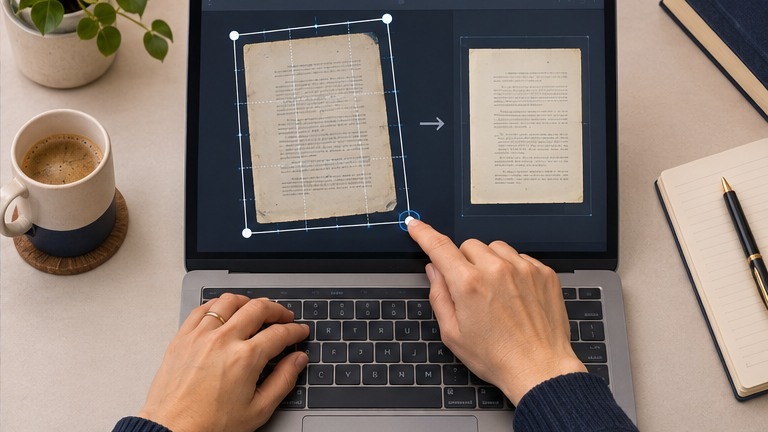
Duplicate the original before making changes. Rotate sideways pages, straighten crooked ones and crop dark borders while preserving page numbers and notes. If you have the paper copy, rescanning a blurry page may save more time than repeatedly processing the same image. Keep the original file so you can check faint text without the effects of filters or compression.
If you’re learning how to summarize a scanned PDF with AI, test a few representative pages before processing the whole file. Pick a clean page, a dense page and the page with the worst contrast. If the worst page contains a figure you need, check whether that figure is readable before spending time on the rest.
3. Run OCR and save a searchable PDF
OCR recognizes characters in a page image and makes the text searchable. Choose the document language and the page range that needs recognition. If the file contains multiple languages, check whether your tool can recognize them together or process the relevant sections separately. For a concrete walkthrough, see Adobe’s guide to recognizing text in scanned PDFs.
Knowing how to summarize a scanned PDF with AI also means checking what the OCR actually captured. Reopen the output and search for an uncommon name, a date and a figure. Copy a few lines from a two-column page to see whether the columns stay in order. Check that the searchable copy still has the same page sequence as the original, especially if you scanned replacement pages.
4. Upload the searchable file and give the AI a specific job
How you ask depends on what you plan to do with the answer. If you’re learning how to summarize a scanned PDF with AI for a meeting, ask for decisions, owners and deadlines. For a research paper, ask for the main finding, the method and any limitations. A precise brief helps the tool focus on the relevant sections.
Use only the attached searchable PDF. Give me a short overview and up to five findings about [topic]. For each finding, give its PDF viewer page and a short supporting quote or table label. Flag unclear text or numbers. If a page is unreadable or the file does not answer a question, say so.
If the file is long, summarize relevant chapters in batches. Include the original page range in each prompt and carry those references into the combined summary. Before uploading confidential material, check which OCR and AI tools your organization approves for that document.
5. Compare the output with the original page images
The last step in how to summarize a scanned PDF with AI is checking the information you’ll share. Open the original scan at each cited page. Read the surrounding lines and confirm that the supporting text says what the summary claims. Use the original page image for this check because the summary and the searchable text can repeat the same OCR error.
- Check names, deadlines, units and decimal points against the scan.
- Match figures to their row and column headings.
- Read footnotes that explain exceptions or limits.
- Mark a detail as unclear when the original remains unreadable.
How Different Scans Affect the Summary
When deciding how to summarize a scanned PDF with AI, use the table to identify the checks that matter most for your file.
| Scan type | Likely problem | What to check |
| Clean printed pages | Occasional errors in names or digits | Search for an unusual name and compare a number with the scan |
| Faint or crooked photocopy | Missing characters or entire lines | Straighten or rescan, then compare the weakest area |
| Two-column article | Text copied in the wrong reading order | Copy one paragraph from each column and inspect the sequence |
| Table-heavy report | Values attached to the wrong heading | Check key cells against both row and column labels |
| Handwritten notes | Unclear words and initials | Transcribe important lines manually and mark uncertain details |
Worked Example From a Scanned Meeting Packet
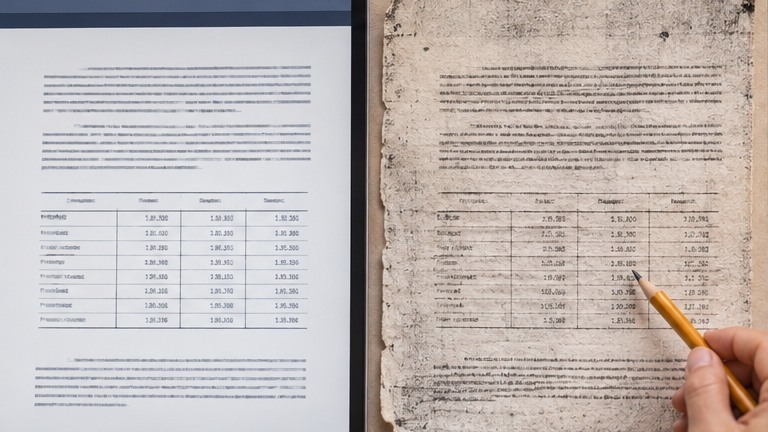
Imagine you’re showing a coworker how to summarize a scanned PDF with AI. A photocopied meeting packet contains a budget table that lists an annual fee of $1,850. A faint footnote says the fee applies to one site. The OCR reads the number as $18,500, and the summary calls it the annual fee for the entire office network.
The cited page is right, so it might pass a quick review. Open that page in the original scan and zoom in on the fee. Follow its row across to the relevant heading, then check the note below the table. A supported summary would say, “The packet lists an annual fee of $1,850 for one site.” Keep the page and table reference beside the figure if it will go into a meeting brief.
The same approach works for minutes and action items. If a scan says a manager will review a proposal by Friday, the summary should preserve the difference between reviewing it and approving it.

What to do when a page keeps producing bad text
If one page holds up a whole document, focus on the passage you need. Rescan the page if possible. If you can read the original yourself, transcribe the relevant lines, keep the page reference and ask the AI to summarize that excerpt. If you use an image-capable tool, you can give it a clear crop with the surrounding labels intact. Check its reading against the scan as you would with OCR.
Frequently Asked Questions
Can AI summarize a scanned PDF without running OCR first?
Some tools can read page images directly, while others require a text layer. Test a page with a known answer and ask for the supporting line. A searchable copy is useful when you want to find passages yourself and reuse the file.
Why does my PDF look normal but produce an empty summary?
It may contain page images without selectable text. Try searching for an uncommon word you see on the page. If the search fails throughout the file, run OCR and check the output before uploading it again.
Can OCR handle handwriting?
Recognition depends on the handwriting, scan quality and tool. For an important handwritten name, date or amount, compare the output with the image and transcribe it yourself when you can read it clearly.
What if the AI cites the wrong page?
Check whether the tool used the viewer page or the page number printed on the document. Search the searchable PDF for a distinctive phrase, then confirm the passage in the original scan.
Should I summarize the whole PDF if I only need one answer?
Start with the pages that answer your question. Include nearby context, such as a table heading or a footnote, and tell the AI which original pages you supplied.
Final Takeaway
Once you know how to summarize a scanned PDF with AI, the workflow is simple. Test for selectable text, run OCR where needed and give the AI a focused question. Keep the original open for a quick check of the evidence behind the summary. That’s where you’ll catch a missing decimal, a swapped table value or a qualification that changes the meaning.





One Comment